FAQ
Frequently asked questions
Getting started
An Android 9+ phone, a Google account with YouTube Live enabled, and decent Wi-Fi or 4G. The planned iPhone release requires iOS 17+; its App Store download is coming soon. That's it. No laptop, no capture card, no production crew.
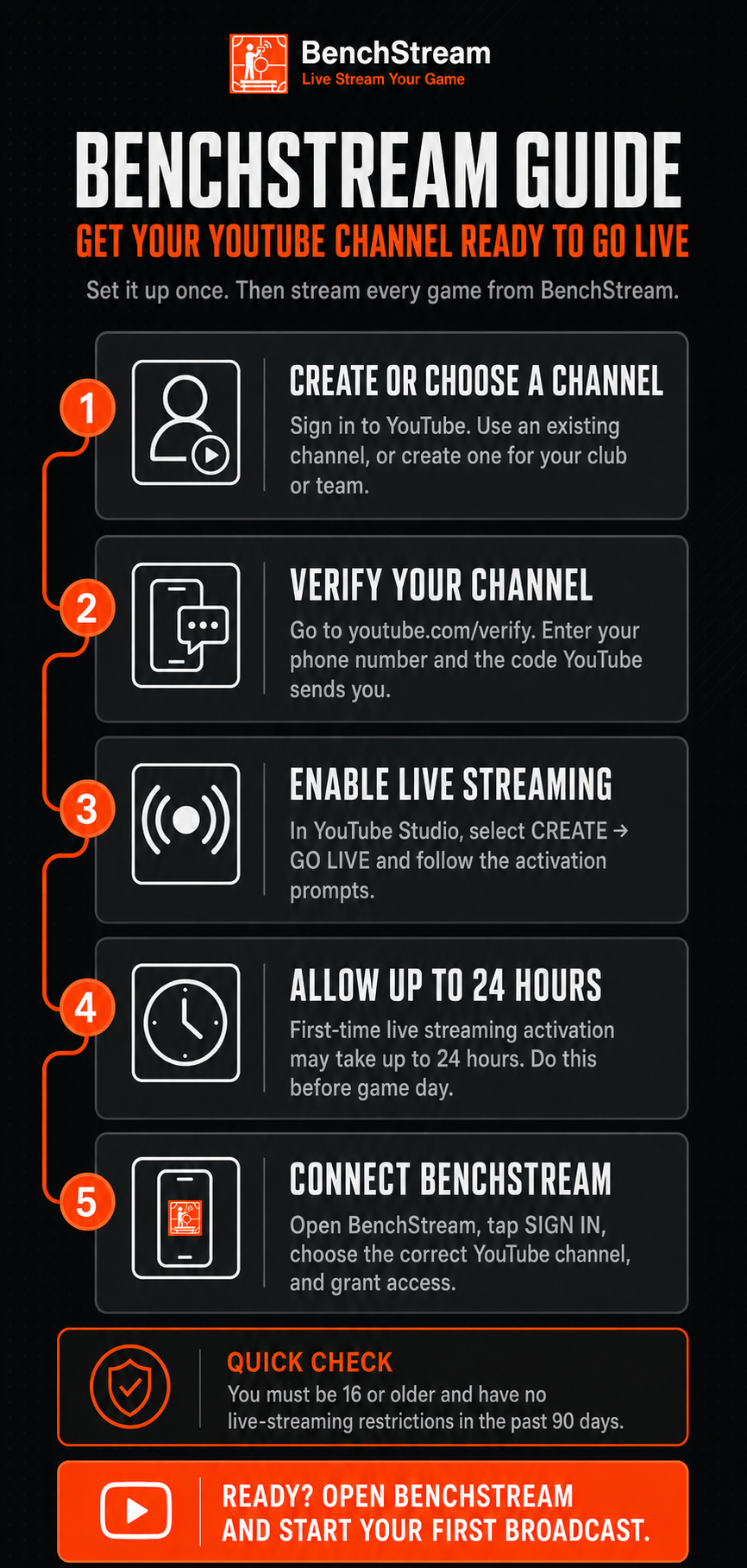
Create or choose a YouTube channel, verify it at youtube.com/verify, then select Create > Go Live in YouTube Studio and follow the activation prompts. First-time activation can take up to 24 hours, so do this before game day. You must be at least 16 and have had no live-streaming restrictions in the past 90 days. Once enabled, sign in to BenchStream with the correct channel and grant access.
App Store download coming soon, and iOS Pro is not available to buy yet. The planned iOS launch includes both Free and paid Pro, matching Android: unlimited watermarked 480p streaming on Free, with scoreboards, HD up to 4K where supported, custom thumbnails, watermark removal, and sponsor scenes on air with Pro. Monthly and annual plans, with no public trial. Apple prices are not yet available. Our download page will show a verified store link when the listing is live.
Streaming
No. BenchStream signs in with Google OAuth and talks to YouTube on your behalf. Your phone sends video to YouTube's ingest servers directly.
Yes. Use the Manual Stream option to paste any RTMP or HLS ingest URL and stream key. BenchStream sends video to any destination that accepts standard ingest.
On Android, BenchStream automatically retries up to 5 times with exponential backoff. You'll see clear status like "Reconnecting (2/5)", and if it can't recover, you get specific instructions on what to fix. On iPhone, BenchStream does not reconnect automatically, so start the stream again from setup.
Yes, if your phone supports it. BenchStream detects your phone's capabilities and only offers resolutions your device can encode reliably. Free includes 480p; Pro unlocks 720p through 4K.
BenchStream watches YouTube's ingest state in real time. You only see the GO LIVE button when YouTube confirms it's receiving your video. No guessing.
Audio
Tap "Calibrate to this room" (on iPhone, "Calibrate") in mic settings. BenchStream listens for 10 seconds, measures the loudest peak, and recommends a level that leaves headroom for cheers and whistles without clipping.
Yes. BenchStream supports USB microphones, USB headsets, wired headsets, and Bluetooth LE audio. Select your input in the mic settings panel.
Scoreboard
Tap +/– on the scoreboard rail while streaming. The overlay updates on your YouTube broadcast in real time. No need to pause or restart the stream.
Yes. In stream settings, use the position picker to place the scoreboard in any corner or edge of the frame.
Yes. The scoreboard works for any two-team sport. BenchStream ships preset thumbnails for hockey, basketball, football, soccer, tennis, and canoe polo.
Pro unlocks 720p through 4K streaming, the scoreboard overlay, custom thumbnails and club branding, sponsor break scenes on air, and BenchStream watermark removal. Free includes unlimited-length 480p/30fps streaming, YouTube scheduling, manual RTMP destinations, default sport thumbnails, and sponsor editing. Free streams carry the BenchStream watermark.
Yes. The Sponsor Library and scene editor stay available on Free, so you can build and keep your sponsor setup. Pro is required only when you put a sponsor scene on air.
YouTube
BenchStream creates and manages broadcasts on your YouTube channel. Monetization settings are controlled in YouTube Studio, just like any other live stream.
Yes. BenchStream pulls in your scheduled YouTube broadcasts. Configure quality and scoreboard, then go live when you're ready.
Pro and billing
The app store does. Google takes payment for Google Play Pro on Android; Apple is the planned payment platform for App Store Pro on iOS. iOS Pro is not available to buy yet. The originating store handles applicable taxes and holds your payment details; we never see your card.
No. Google Play Pro works on Android only and planned App Store Pro will work on iOS only. They are separate products and do not transfer between stores. Using Pro on both platforms requires one subscription from each store.
No. BenchStream creates no BenchStream account. Subscription ownership follows the Google Play or Apple account used to buy it, independently of the Google/YouTube account, YouTube channel, or Brand Account you connect for streaming. Changing a channel or Brand Account does not move or cancel Pro.
On Android, open the Pro screen and tap Restore Purchases while the Play Store is signed in to the Google account that bought Pro. Use this after reinstalling or on a new Android phone. Your YouTube sign-in, channel, and Brand Account do not affect the purchase. An Android purchase cannot be restored on iOS, and an iOS purchase cannot be restored on Android.
A pending purchase does not unlock Pro. It switches on when Google Play confirms the entitlement. If a renewal payment fails, Pro stays on during Google's grace period while Play retries it. If Play later puts the subscription on account hold, Pro locks after BenchStream receives a definitive fresh store result. Check the subscription and payment method in Google Play, then use Restore Purchases after Play shows it as active.
Open Android billing troubleshooting →Yes, when this installation has a cached, confirmed Pro entitlement. A failed network check does not turn Pro off. If the subscription expires or is refunded or revoked while offline, the cached state can remain until a later successful check after the app starts or returns to setup online. Any entitlement change received during an active stream waits until that stream ends, so billing state never interrupts a game already on air.
Read the full billing guidance →It unlocks features that are already inside the app you installed: 720p to 4K, the scoreboard overlay, custom thumbnails and club branding, sponsor break scenes, and watermark removal. Paying flips an entitlement the installed app reads, and those features then run on your phone. Pro is not hosted streaming, hosted storage, or access to a BenchStream server, because there isn't one in the path: your video goes straight from your phone to YouTube or to a destination you configure yourself.
No. Free has no time limit and requires no payment method. BenchStream does not currently offer a public trial. If you choose Pro, the paid monthly or annual subscription starts on the terms shown by the store before you confirm.
Yes, where the app offers it, and without cancelling first. On Google Play the switch happens straight away in both directions. Monthly to annual charges the full annual price there and then, and whatever was left of your month is added onto the end of your new annual billing period rather than refunded — no money comes back. Annual to monthly charges nothing on the day you switch; monthly billing starts on the date your annual subscription would have renewed, so you keep the time you've already paid for. Google shows the amount and the date before you confirm.
In your store's subscription settings, not in BenchStream; we can't cancel a store subscription for you. On Android: Google Play > your profile > Payments and subscriptions > Subscriptions > BenchStream > Cancel. For future Apple-billed purchases, Apple's guidance is Settings > your name > Subscriptions > the subscription > Cancel Subscription. iOS Pro is not available to buy yet. On Android, Pro stays active until the end of the period you've already paid for, and no money comes back. Uninstalling the app does not cancel a subscription. This is the ordinary way to stop future charges; it is not a refund, and it is not the separate 14-day statutory right to cancel that UK buyers have.
No. Signing out of Google, disconnecting or revoking YouTube access, changing a channel or Brand Account, clearing app data, and uninstalling do not cancel store billing. Cancel through the store where you bought Pro.
It depends what you are asking for. If you are exercising a statutory right — the UK 14-day right to cancel, or a claim that Pro was faulty or not as described — write to us at support@bench-stream.com. For Google Play statutory requests: You never have to go to the store first and we will not send you back there. For future Apple-billed purchases, Apple's refund route is reportaproblem.apple.com; you can also contact us about a fault or statutory claim without first using Apple's process. Apple processes and pays any refund for an App Store purchase, including one you are owed by law; we cannot issue it ourselves, but we will help you request it. The Refunds page explains the Apple route and the legal questions still under review before iOS sales. If you just want a discretionary refund quickly, the store's own refund process is often faster, and you are free to use it: in Google Play, open your profile, then Payments and subscriptions, then Budget and order history, find the order and choose Report a problem. Google says a decision usually takes one to four days, and it publishes a separate withdrawal form for UK and EEA buyers. Store processes do not limit any statutory rights you may have against BenchStream as the supplier.
Read the refund policy →UK consumers buying at a distance have a 14-day right to cancel under the Consumer Contracts (Information, Cancellation and Additional Charges) Regulations 2013. It does not depend on anything being wrong and you do not have to give a reason. You can use the model cancellation form in Part B of Schedule 3 to those Regulations, which we reproduce on the Refunds page, but the form is not obligatory: any clear statement that you are cancelling, such as an email, is enough. Pro is digital content rather than a service, so the proportionate charge people expect from cancelling a service does not apply. Where the consent, acknowledgement and durable confirmation that regulation 37 requires were not obtained, you bear no cost for the Pro supplied in that period. Say so in writing inside the 14 days and we will establish the rest.
Read the 14-day cancellation section →The Android app has no advertising, crash-reporting, or behavioural-analytics SDK. The iPhone app is not on the App Store yet. Its App Store listing will show its privacy details when it goes live. The Android app contacts RevenueCat when you choose to open a billing surface showing subscription prices or plan terms, such as the paywall or plan comparison, and it creates a pseudonymous per-install identifier at that point. For an installation with billing history, it also checks when the app starts and performs throttled checks when it returns to setup, including after a broadcast ends. No check runs during the active stream. RevenueCat never receives your video, audio, or Google/YouTube identity.
Read Privacy Policy section 7 →